Basic Usage
Quick start with init
The simplest way to use sheets-translate-to-json is the init method, which reads all sheets and writes JSON files in one call.
import { SheetManager } from 'sheets-translate-to-json';

const manager = new SheetManager(
  process.env.PRIVATE_KEY,
  process.env.CLIENT_EMAIL,
  process.env.SHEET_ID
);

await manager.init('./translations');
This will:
- Connect to your Google Sheet
- Read all sheets and merge their data by language
- Create one JSON file per language in
./translations/(e.g.,en.json,fr.json,es.json)
Select specific sheets
If your spreadsheet has multiple tabs and you only want certain ones:
await manager.init('./translations', ['Homepage', 'Settings']);
Only the sheets named "Homepage" and "Settings" will be processed, and their data merged.
Separate read and write
For more control, use read and write separately:
const manager = new SheetManager(privateKey, clientEmail, sheetId);

// Read data from the first sheet
const data = await manager.read();

// Optionally transform the data here...

// Write to disk
manager.write(data, './translations');
Read by sheet name
const data = await manager.readByName('Homepage');
manager.write(data, './translations');
Read all sheets individually
const allData = await manager.readAllSheets();

// allData is { [sheetName]: SheetData }
for (const [sheetName, data] of Object.entries(allData)) {
  console.log(`Sheet "${sheetName}" has ${Object.keys(data).length} languages`);
}
List available sheets
const sheetNames = await manager.listSheets();
console.log(sheetNames); // ['Homepage', 'Settings', 'Emails']
Output structure
Given a spreadsheet with this data:
| key | en | fr |
|---|---|---|
| hello | Hello | Bonjour |
| nav.home | Home | Accueil |
| nav.about | About | A propos |
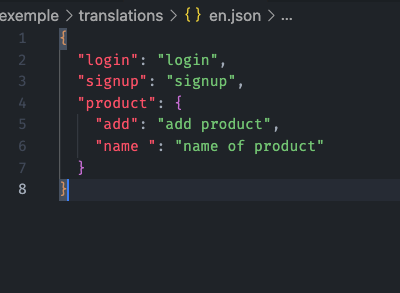
The generated en.json will be:
{
  "hello": "Hello",
  "nav": {
    "home": "Home",
    "about": "About"
  }
}
Dot-notation keys are automatically expanded into nested objects.
Running your script
# JavaScript
node your-script.js

# TypeScript (with ts-node)
npx ts-node your-script.ts

# TypeScript (with tsx)
npx tsx your-script.ts
Result
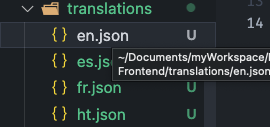
After running your script, a translations/ folder is created with the generated JSON files:
Two-way sync
The SDK supports two-way synchronization between your local JSON files and Google Sheets. This is useful when translations are edited both locally and in the spreadsheet.
Push local changes to Google Sheets
Use push to upload your local JSON files back to Google Sheets. Nested objects are flattened back to dot-notation automatically.
// Push to the default sheet
await manager.push('./translations');

// Push to a specific sheet (creates it if it doesn't exist)
await manager.push('./translations', 'Homepage');
Read local files back into SheetData
Use readLocal to read your JSON files from disk back into the SheetData format, without any network call.
const data = manager.readLocal('./translations');
// data is the same shape as what read() returns
Full two-way sync
Use sync to synchronize both directions at once. The method compares local and remote data and reconciles them based on the chosen strategy.
// Default merge strategy: combines both sides, prefers local on conflicts
const result = await manager.sync('./translations');

console.log(result);
// {
//   added: { local: 3, remote: 5 },
//   updated: { local: 1, remote: 2 },
//   languages: ['en', 'fr', 'es']
// }
Sync strategies
// Local wins: your local files override remote on conflicts
await manager.sync('./translations', { strategy: 'local' });

// Remote wins: the spreadsheet overrides local on conflicts
await manager.sync('./translations', { strategy: 'remote' });

// Merge (default): combines both, prefers local on conflicts,
// fills in missing values from both sides
await manager.sync('./translations', { strategy: 'merge' });
Sync with a specific sheet
await manager.sync('./translations', {
  sheetName: 'Homepage',
  createSheet: true,  // create the sheet if it doesn't exist
  strategy: 'local',
});